Simple Avoidance Game with Flash CS6
This is a tutorial that will show you how to create a simple avoidance game using ActionScipt version 3 in Adobe Flash CS6. The following is the screen captured for the appearance of this game. There are only two characters in the game. Enemy will drop from the sky and the cute little jelly man is going to avoid the enemy. One mark will be granted if jelly man successfully avoid being hit by the enemy drop from the sky. In addition, any successful avoidance will increase the dropping speed of the enemy which create some difficulty to the game and enhance the playability of the game.
At the beginning of the game, we need to plan and organize the game. First of all, we need to define the goal of the game. The restriction of the game. The condition that will end the game. The highest mark will be granted to those who can avoid the enemy at the longest time.
Goal of the game: The jelly man has to avoid being hit by enemy as long as possible.
Restriction of the game: The jell man can move left or right (controlled by left and right keys beside the number pad). The enemy will randomly drop from the sky.
Condition Ending the game: If the jelly man is hit by the enemy the game end.
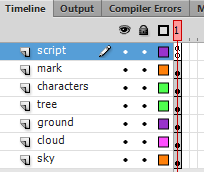
Then, design the background scene. Normally I will place ground at one layer, tree at one layer, sky at one layer, cloud at one layer, characters at one layer, mark at one layer and finally a layer for script.
We will create all necessary for the scene accordingly. Let's start with creating movieclips in Flash.
Creating Movie Clip
In the step, we need to create characters in the game (enemy and jelly man), NPCs (trees, ground, cloud and sky). We need to convert this image to movieclip in Flash and store in the Library so we can used them later in the game scene.
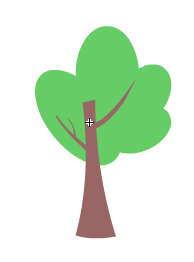
Let use the Flash drawing tool to create the tree look similar to the following:
Create a jelly man and enemy look similar to the following:
Create your cloud, sky and ground respectively at your own creativity.
Make characters and NPCs available in the scene
Place the characters and NPC to the respective layer as shown as the following:
Drag one enemy to the stage. Give a name to this character so that the script can interact with it. In this case, named it
enemy.
Drag one enemy to the stage. Give a name to this character so that the script can interact with it. In this case, named it
hero.
Create a text box at the right upper corner and named it
mark. Change the text to dynamic as it can be updated by the script.
Create the script section for the game
Select the script layer, press F9 to enter script editing window. Copy and paste the following code into the window.
stage.addEventListener(KeyboardEvent.KEY_DOWN, pressedButton);
stage.addEventListener(Event.ENTER_FRAME, onEnter);
var score:Number = 0;
var enemy_speed:Number = 5;
var size:Number = 60;
var step:Number = 6;
function init():void{
enemy.x = size/2;
hero.x = size/2;
}
init();
function randomRange(minNum:Number, maxNum:Number):Number{
return (Math.floor(Math.random()*(maxNum-minNum))+minNum);
}
function onEnter(e:Event){
enemy.y = enemy.y + enemy_speed;
if(enemy.y > stage.stageHeight){
enemy.y = -size;
var num:Number = randomRange(0,step+1);
enemy.x = num*size+size/2;
score = score + 1;
mark.text = String(score);
if (stage.frameRate <= 60){
stage.frameRate = stage.frameRate + 5;
}else{
stage.frameRate = 60;
if(enemy_speed <= 25){
enemy_speed +=1;
}else{
enemy_speed += 25;
}
}
}
if(hero.hitTestObject(enemy)){
stage.removeEventListener(KeyboardEvent.KEY_DOWN, pressedButton);
stage.removeEventListener(Event.ENTER_FRAME, onEnter);
stage.frameRate = 24;
}
}
function pressedButton(event:KeyboardEvent) : void
{
if(event.keyCode == Keyboard.LEFT && hero.x >= size){
hero.x = hero.x - size;
}else if (event.keyCode == Keyboard.RIGHT && hero.x <= step*size-size){
hero.x = hero.x + size;
}
}
Play the game by pressing CTRL+ENTER.
The executable version of game is available in the link: https://www.dropbox.com/s/7i921ttldsab4dn/SimpleAvoidanceGame.swf?dl=0